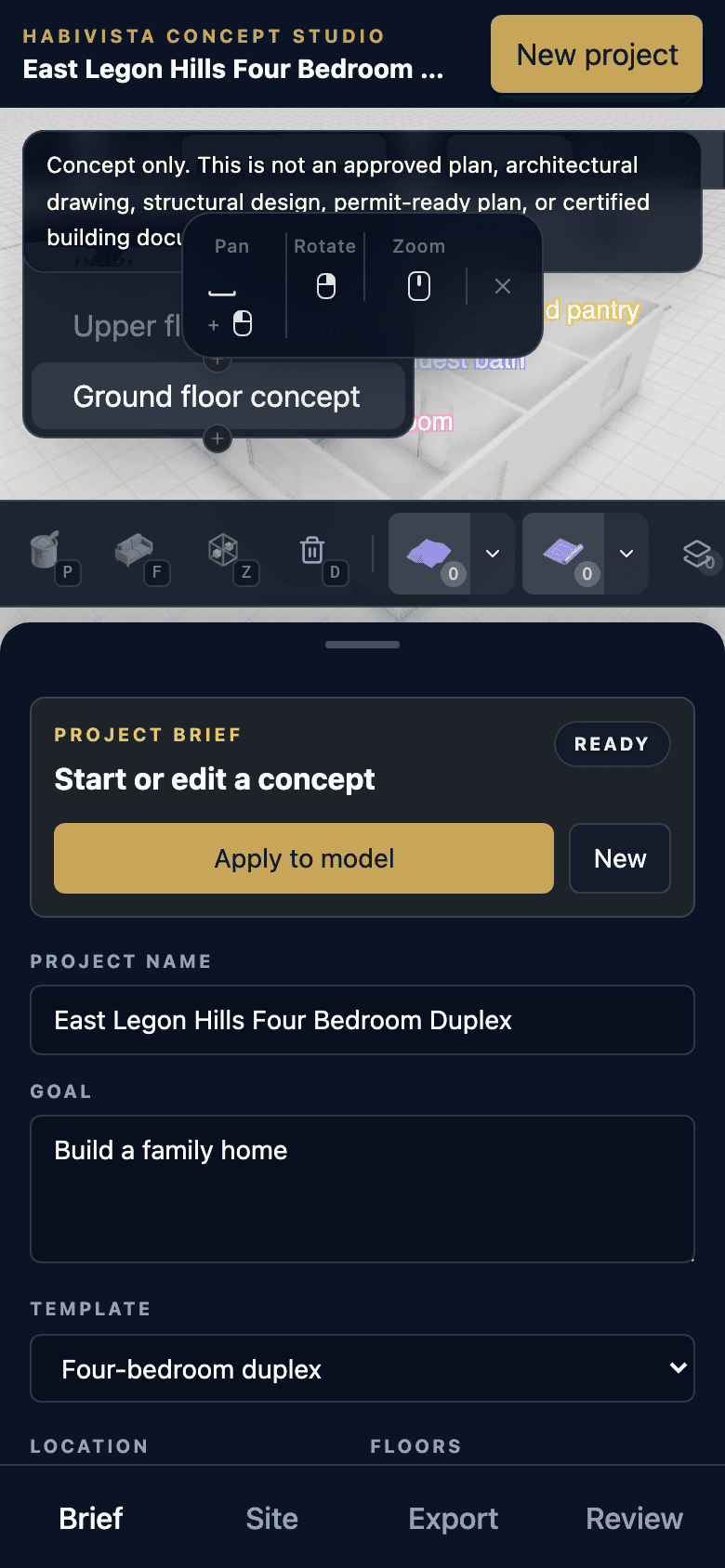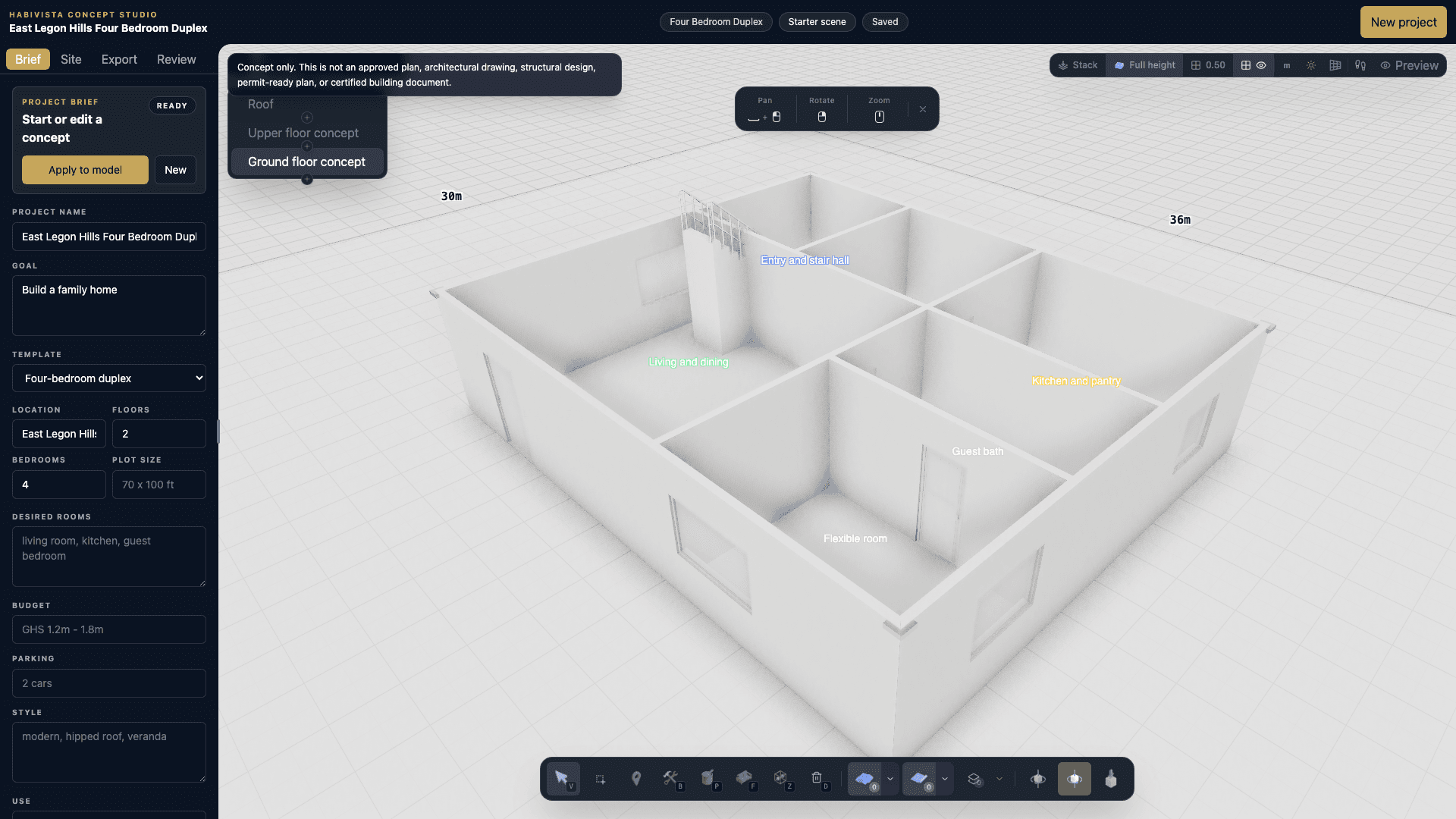
Desktop entry and handoff
Start on the marketplace page, run the intake, and move into Studio.
A practical walkthrough for moving from rough build idea to structured brief, visual Studio model, paid report pack, and Azunus professional review handoff.
Last verified on 10 May 2026 against the Habivista test domain and Studio visual editor.

Concept-only guardrail
Studio outputs are early visualizations and planning sketches only. They are not approved plans, permit-ready plans, structural designs, certified building documents, or construction instructions.
Marketplace
AI intake and template handoff
Studio
3D editor and local draft workspace
Payments
Report pack checkout and verification
Azunus
Professional review and advisory handoff
Walkthrough videos
Use these recordings to demo the entry path, assistant flow, and visual editor before walking a client through it live.
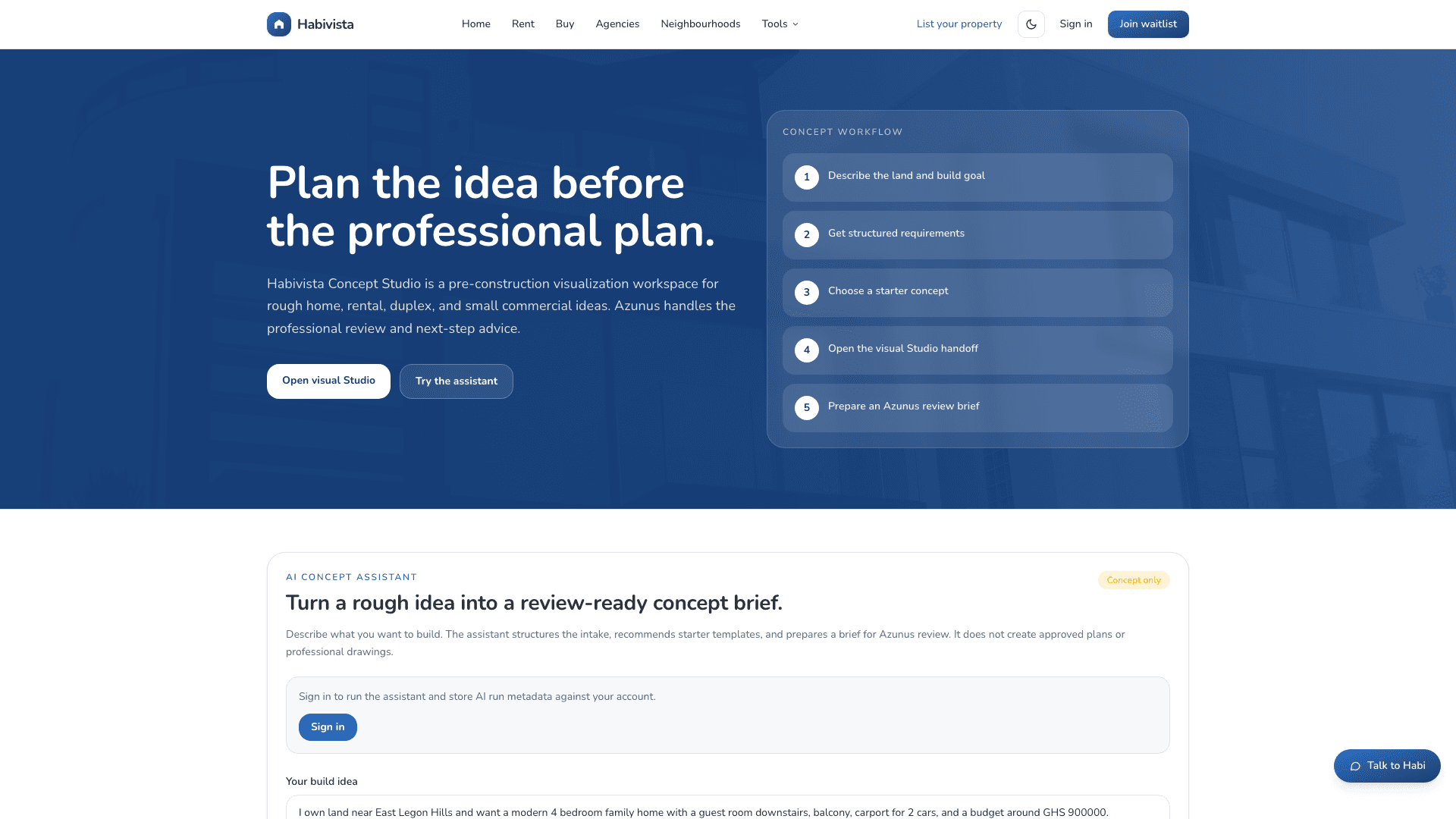
Start on the marketplace page, run the intake, and move into Studio.
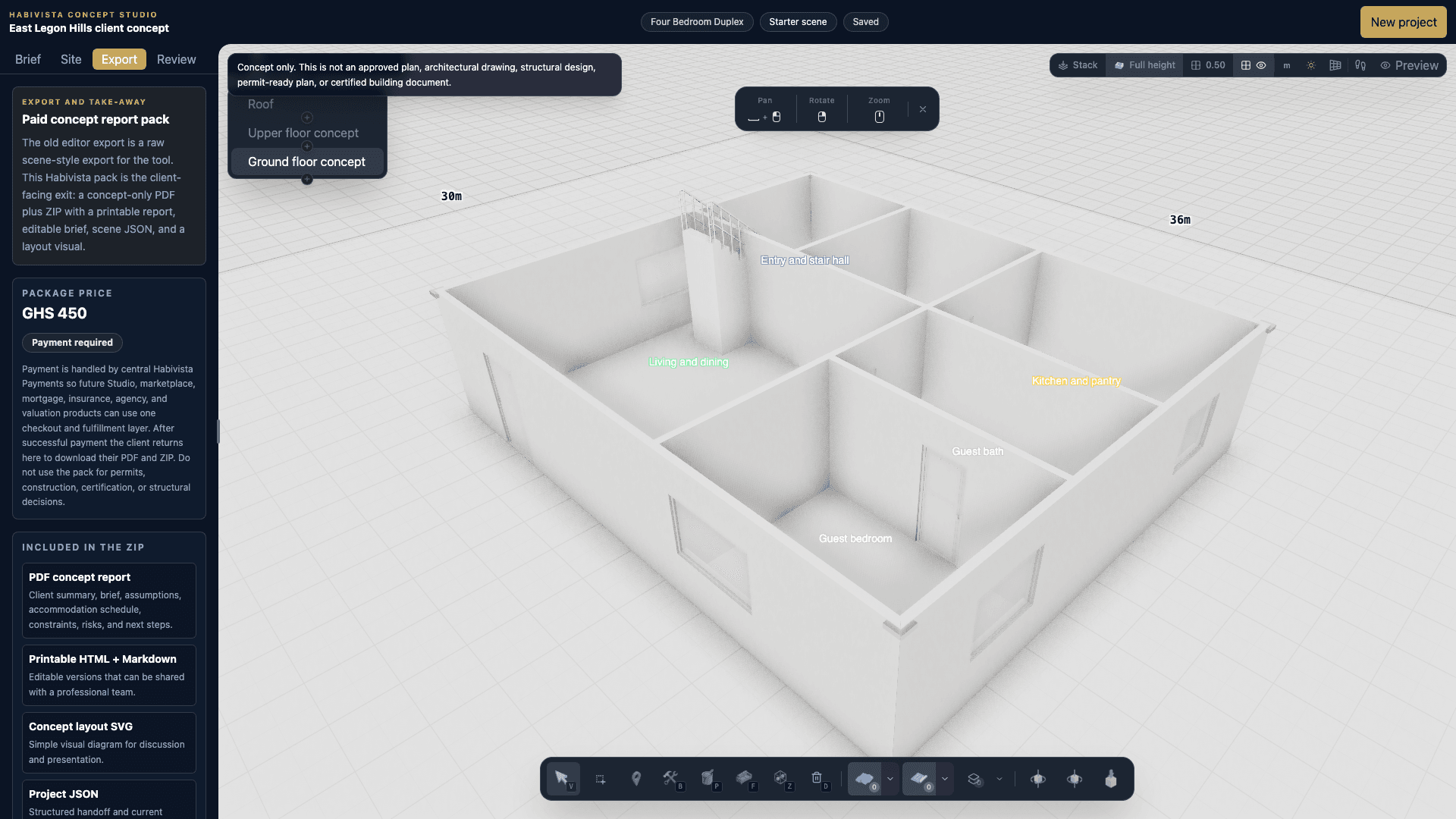
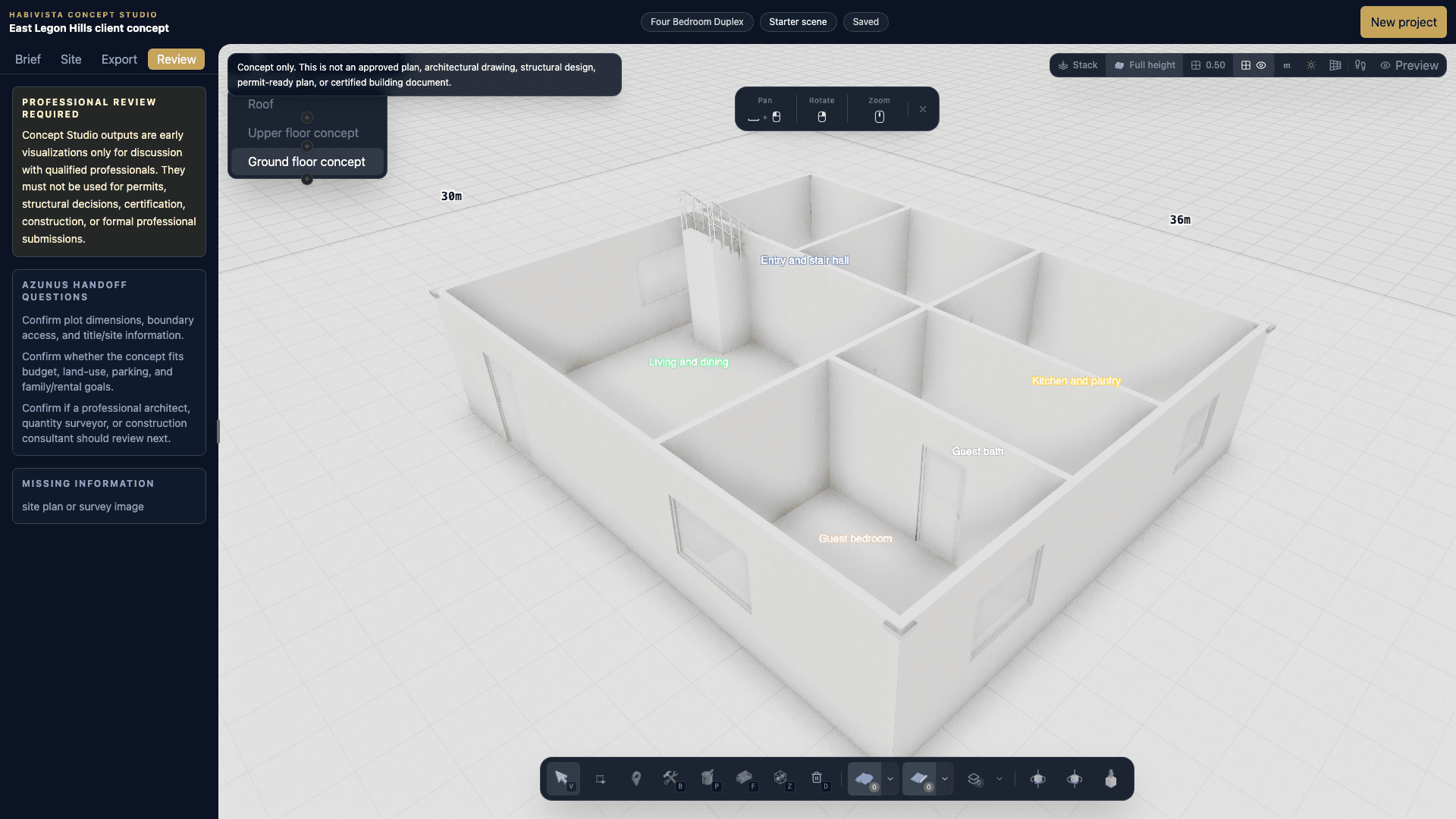
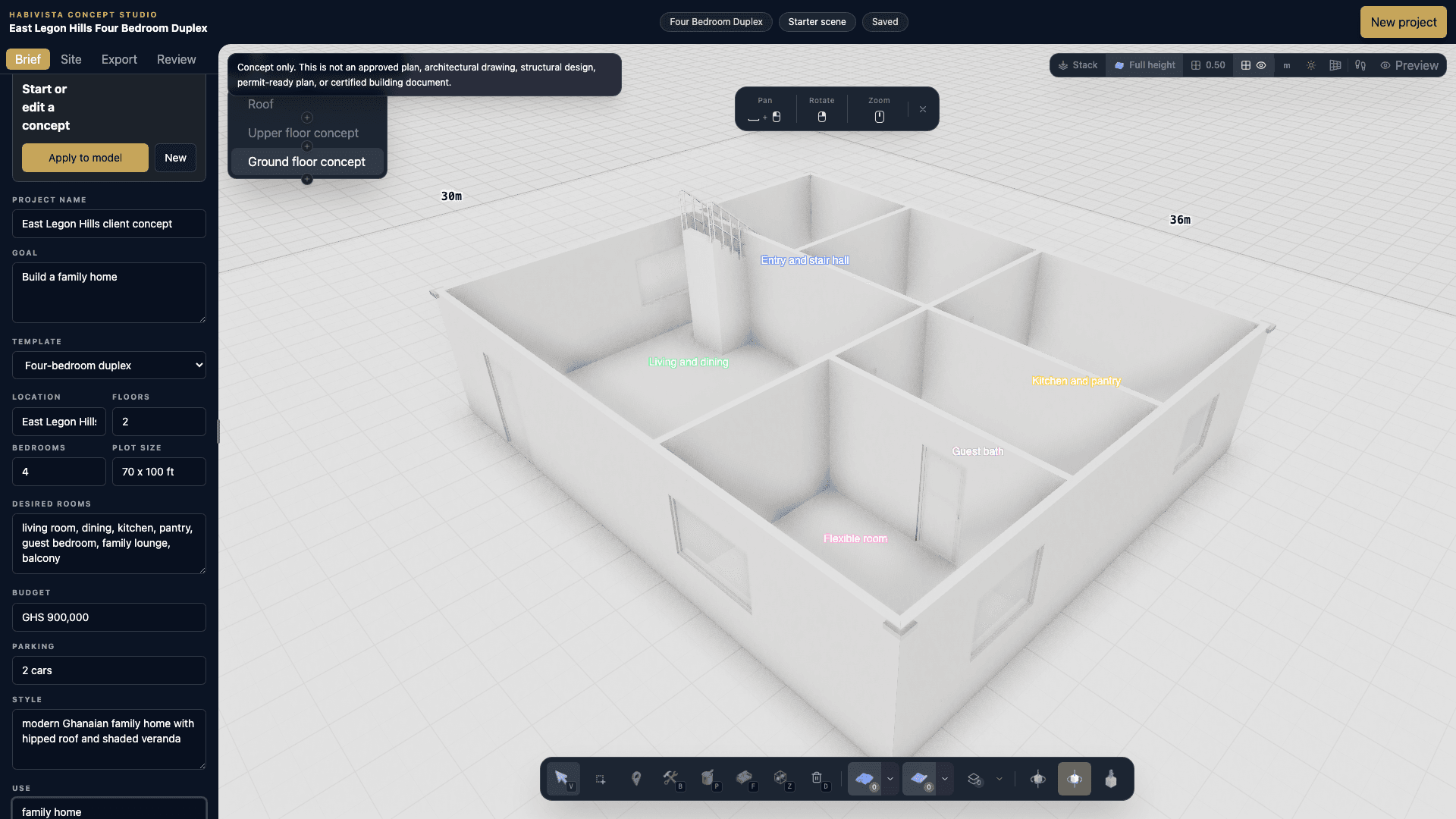
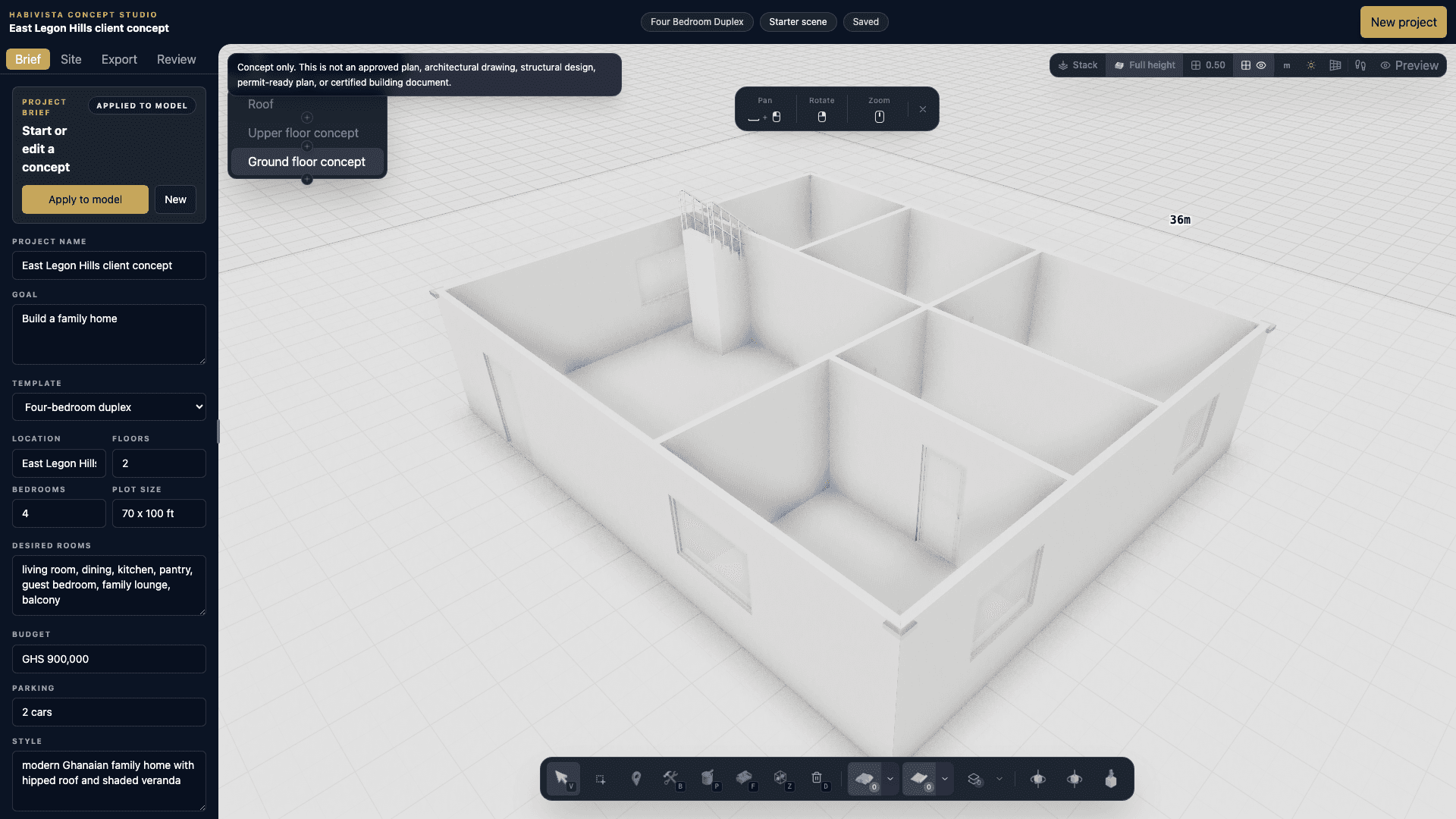
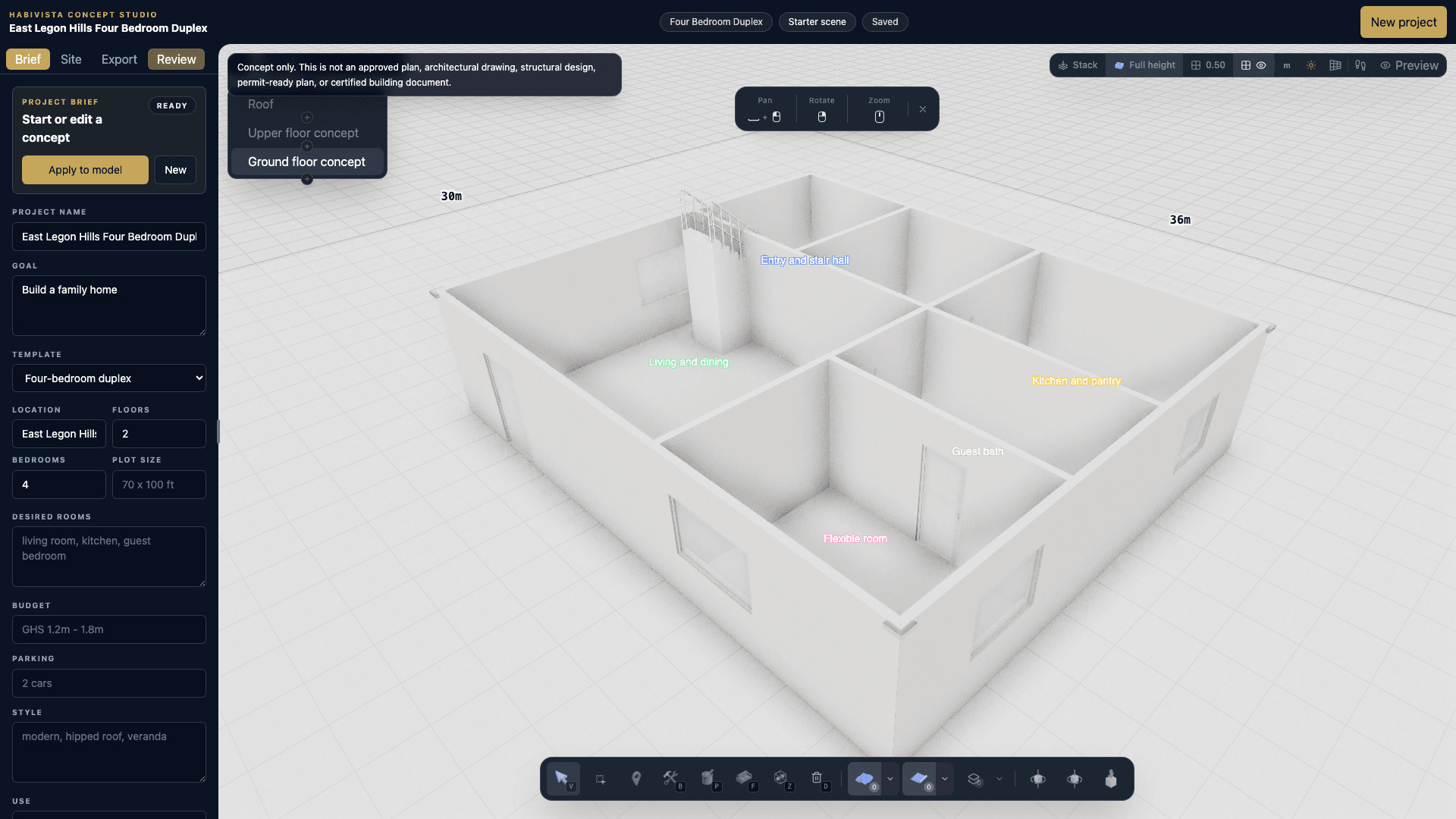
Review the 3D workspace, brief tab, export path, and review panel.
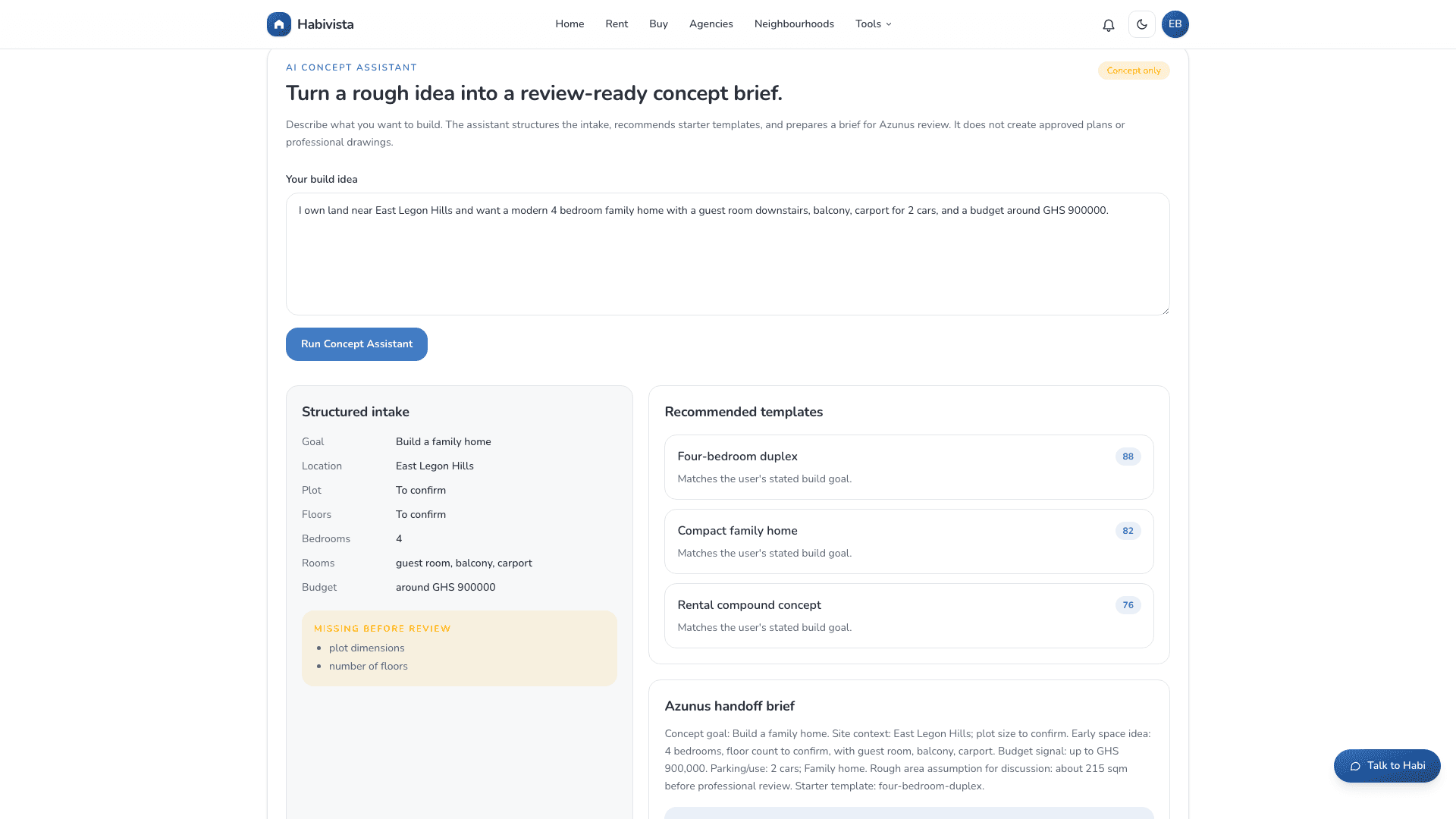
See the AI Concept Assistant intake and visual handoff flow.
Step-by-step
Follow these stages in order when onboarding a client or testing the module end to end.
Stage 1
Start at the Concept Studio page to explain the workflow, open the assistant, or jump directly to the visual editor.

Stage 2
The assistant turns a rough build idea into a structured concept brief. It is for intake and planning only, not professional design approval.

Stage 3
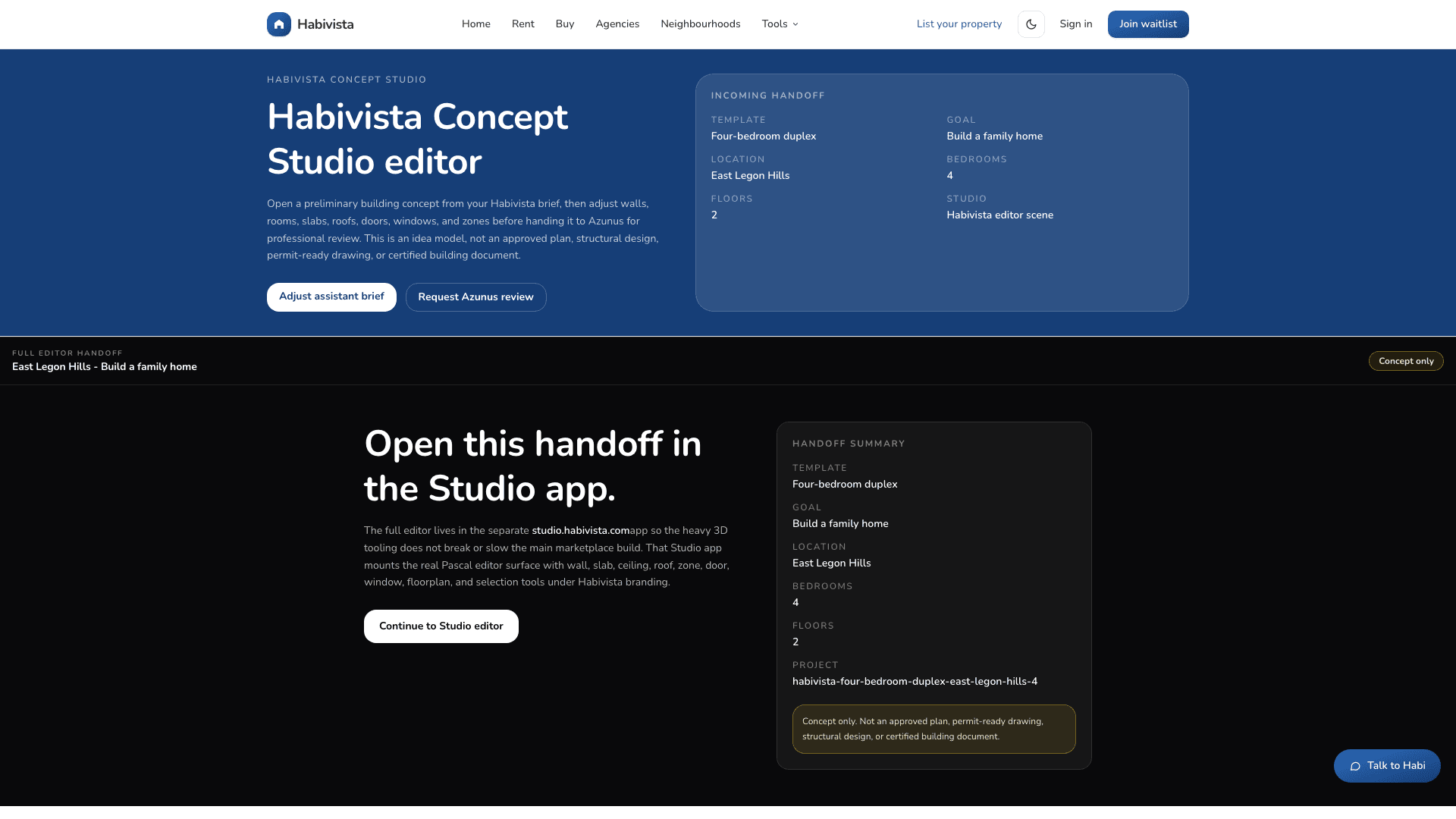
The handoff route carries template, goal, location, bedrooms, and floor values into the visual editor.

Stage 4
The Studio editor is the visual workspace for walls, rooms, zones, levels, openings, roof, export, and review workflow.

Stage 5
The Brief tab controls project setup. Apply to model rebuilds the starter scene from the current brief and selected template.

Stage 6
The Export tab is the client take-away path. The Habivista report pack is separate from raw scene export.

Stage 7
The Review tab frames the professional handoff. It helps decide whether Azunus, an architect, a quantity surveyor, or another professional should review next.

Stage 8
Mobile works well for review and handoff links, but desktop or tablet remains better for dense visual editing.

Scene structure
Studio separates the site, building, levels, walls, openings, zones, slabs, ceilings, and roof so the model can stay understandable as a concept sketch.


Client demo script
Use this sequence for demos so the client understands the handoff from idea to concept to professional review.
Troubleshooting
Most issues come from feature flags, sign-in state, local draft state, or payment verification.
Check HABIVISTA_FLAG_CONCEPT_STUDIO. The preferred deployment value is true, although 1, yes, and on are also accepted.
Sign in through the normal Habivista login page. The assistant uses client auth context, so a server cookie alone is not enough.
Confirm the user is signed in, HABIVISTA_FLAG_CONCEPT_STUDIO_AI is enabled, and the prompt includes a short build idea.
Add reset=1 to the Studio URL or click New project. The MVP stores drafts locally in the browser.
Payment must be verified first. Do not bypass central payment verification for real users.
Use desktop for editing. Mobile is supported for review and light changes, but the editor has dense controls.
Operator checklist
Add server-side report order storage, server-side PDF and ZIP fulfillment, persistent projects beyond local storage, and admin visibility for paid report packs and review requests.